Give an AI agent one mailbox, not your whole inbox
Create a mailbox for the agent on your own domain and give it an API key that can reach only that mailbox — instead of an OAuth grant to your entire Gmail account.
Facts checked
In short
To give an AI agent email without handing over your whole inbox, give it a mailbox of its own. Create agent@yourdomain.com in MarkRelay, create an API key scoped to that one mailbox, and install the MarkRelay skill in Claude Code, Codex, OpenClaw, Hermes Agent or Pi. Every other mailbox is invisible to that key. Gmail's API scopes, by contrast, cover the whole Gmail account. To cut the agent off, delete or disable the key. The agent's mail is stored in your own Cloudflare account: your own cloud account, not an agent-inbox vendor's.
A Gmail OAuth grant vs a mailbox-scoped key
| Question | MarkRelay keyScoped to one mailbox | Gmail OAuth grantGmail API scopes |
|---|---|---|
| Which mail it can reach | Only the mailboxes granted to the key | The whole Gmail account the scope covers, e.g. gmail.readonly: “View your email messages and settings” |
| Limit it to one address | Yes: Specific mailboxes scope | Google's Gmail API scopes page lists no scope limited to one address or label |
| Can it send? | From its granted mailboxes only | With gmail.send or a broader scope, as you |
| How to cut it off | Disable or delete the key; removing the owner's access to the mailbox also removes it from the key | Remove the app's access in your Google account |
| Where the mail is stored | Your own Cloudflare D1 and R2 | |
| Whose address it sends from | The agent's own address, e.g. agent@yourdomain.com | Yours |
Which mail it can reach
- MarkRelay key
- Only the mailboxes granted to the key
- Gmail OAuth grant
- The whole Gmail account the scope covers, e.g. gmail.readonly: “View your email messages and settings”
Limit it to one address
- MarkRelay key
- Yes: Specific mailboxes scope
- Gmail OAuth grant
- Google's Gmail API scopes page lists no scope limited to one address or label
Can it send?
- MarkRelay key
- From its granted mailboxes only
- Gmail OAuth grant
- With gmail.send or a broader scope, as you
How to cut it off
- MarkRelay key
- Disable or delete the key; removing the owner's access to the mailbox also removes it from the key
- Gmail OAuth grant
- Remove the app's access in your Google account
Where the mail is stored
- MarkRelay key
- Your own Cloudflare D1 and R2
- Gmail OAuth grant
Whose address it sends from
- MarkRelay key
- The agent's own address, e.g. agent@yourdomain.com
- Gmail OAuth grant
- Yours
Gmail scope descriptions are quoted from Google's Gmail API scopes page.
Its own mailbox
agent@yourdomain.com, not your personal inbox.
One mailbox, one key
The key reaches that mailbox and nothing else.
Revoke in one click
Delete or disable the key.
In your own account
The agent's mail stays in your Cloudflare D1 and R2.
How it works
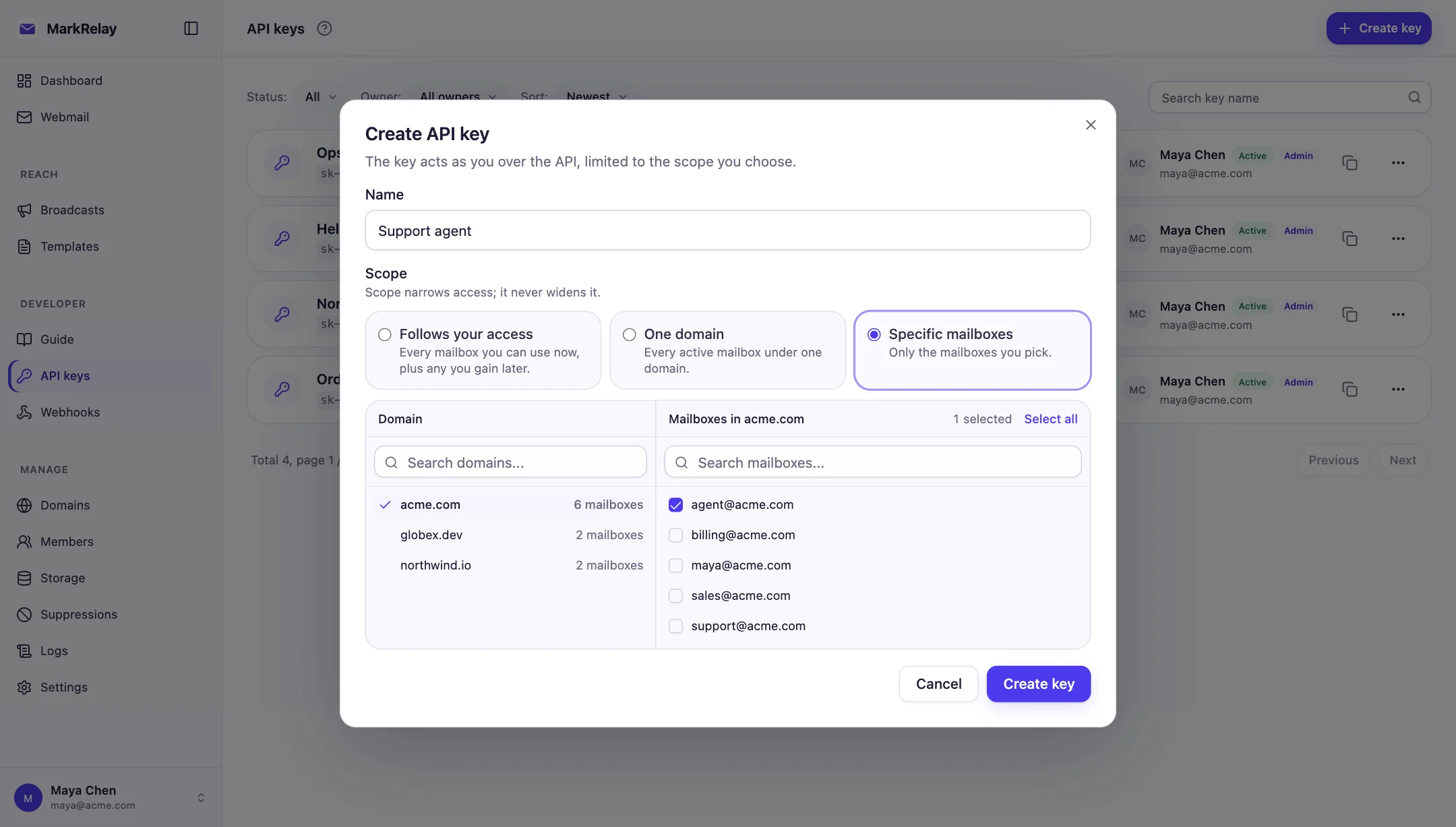
1. Create a mailbox for the agent, such as agent@yourdomain.com. 2. In Developer → API keys, create a key with Specific mailboxes scope and pick only that mailbox. 3. Install the skill your deployment serves at /skills/SKILL.md in Claude Code, Codex, OpenClaw, Hermes Agent or Pi, and give it the API URL and the key. 4. To revoke access, delete the key.
A key reaches only what its owner can open, narrowed to the scope chosen for it. With Specific mailboxes scope, every other mailbox simply does not exist for the agent, in any call.
Install it in your agent
Every deployment serves one Agent Skills file that Claude Code, Codex, OpenClaw, Hermes Agent and Pi all load. Paste one message into your agent and it installs the skill, asks you for the key, stores it and checks the connection.
The address you open MarkRelay at. The prompts and commands below fill it in; until then the prompt asks your agent to ask you.
Install the MarkRelay skill in Claude Code
Fastest: paste this into Claude Code
It installs the skill, asks you for the key, stores it, and checks the connection.
Set up the MarkRelay email skill for yourself. First ask me for my MarkRelay address (for example https://mail.example.com); below it is called MARKRELAY_URL. Then, download MARKRELAY_URL/skills/SKILL.md to ~/.claude/skills/markrelay-mail/SKILL.md. Then save MARKRELAY_API_URL=MARKRELAY_URL/openapi/v1 and MARKRELAY_API_KEY in the env section of ~/.claude/settings.json. Ask me for the key; never put it in a repository. Finally, use the skill to list the mailboxes the key can reach. Tell me if I need to restart Claude Code.Or do it yourself
1. Install the skill
mkdir -p ~/.claude/skills/markrelay-mail
curl -fsS https://<your-deployment>/skills/SKILL.md \
  -o ~/.claude/skills/markrelay-mail/SKILL.md
2. Give it the API URL and key
{
  "env": {
    "MARKRELAY_API_URL": "https://<your-deployment>/openapi/v1",
    "MARKRELAY_API_KEY": "sk-..."
  }
}
Or export the two variables in your shell before starting claude.
3. Ask, or call /markrelay-mail
- Claude loads the skill on its own when you ask about email, or you can call it with /markrelay-mail.
- For one repository only, put the skill in .claude/skills/markrelay-mail instead.
Install the MarkRelay skill in Codex
Fastest: paste this into Codex
It installs the skill, asks you for the key, stores it, and checks the connection.
Set up the MarkRelay email skill for yourself. First ask me for my MarkRelay address (for example https://mail.example.com); below it is called MARKRELAY_URL. Then, download MARKRELAY_URL/skills/SKILL.md to ~/.agents/skills/markrelay-mail/SKILL.md. Then save MARKRELAY_API_URL=MARKRELAY_URL/openapi/v1 and MARKRELAY_API_KEY in export lines in my ~/.zshrc. Ask me for the key; never put it in a repository. Finally, use the skill to list the mailboxes the key can reach. Tell me when to restart Codex.Or do it yourself
1. Install the skill
mkdir -p ~/.agents/skills/markrelay-mail
curl -fsS https://<your-deployment>/skills/SKILL.md \
  -o ~/.agents/skills/markrelay-mail/SKILL.md
2. Give it the API URL and key
export MARKRELAY_API_URL=https://<your-deployment>/openapi/v1
export MARKRELAY_API_KEY=sk-...
Codex passes your shell's variables to the commands it runs. If you filter them with shell_environment_policy, include both.
3. Ask, or call $markrelay-mail
- Mention the skill with $markrelay-mail, pick it from /skills, or let Codex choose it.
- ~/.agents/skills is shared with OpenClaw and Pi, so one copy serves all three.
Install the MarkRelay skill in OpenClaw
Fastest: paste this into OpenClaw
It installs the skill, asks you for the key, stores it, and checks the connection.
Set up the MarkRelay email skill for yourself. First ask me for my MarkRelay address (for example https://mail.example.com); below it is called MARKRELAY_URL. Then, download MARKRELAY_URL/skills/SKILL.md to ~/.agents/skills/markrelay-mail/SKILL.md. Then save MARKRELAY_API_URL=MARKRELAY_URL/openapi/v1 and MARKRELAY_API_KEY in skills.entries."markrelay-mail".env in ~/.openclaw/openclaw.json. Ask me for the key; never put it in a repository. Finally, use the skill to list the mailboxes the key can reach.Or do it yourself
1. Install the skill
mkdir -p ~/.agents/skills/markrelay-mail
curl -fsS https://<your-deployment>/skills/SKILL.md \
  -o ~/.agents/skills/markrelay-mail/SKILL.md
2. Give it the API URL and key
{
  skills: {
    entries: {
      "markrelay-mail": {
        env: {
          MARKRELAY_API_URL: "https://<your-deployment>/openapi/v1",
          MARKRELAY_API_KEY: "sk-...",
        },
      },
    },
  },
}
The Gateway runs as a service, so set the variables here rather than in your shell.
3. Ask, or call /markrelay-mail
- OpenClaw also reads ~/.openclaw/skills. The new skill appears on your next message; no restart needed.
- Ask from any channel OpenClaw is connected to, such as Telegram or WhatsApp: “anything urgent in support@ today?”
Install the MarkRelay skill in Hermes Agent
Fastest: paste this into Hermes Agent
It installs the skill, asks you for the key, stores it, and checks the connection.
Set up the MarkRelay email skill for yourself. First ask me for my MarkRelay address (for example https://mail.example.com); below it is called MARKRELAY_URL. Then, run: hermes skills install MARKRELAY_URL/skills/SKILL.md. Then save MARKRELAY_API_URL=MARKRELAY_URL/openapi/v1 and MARKRELAY_API_KEY in ~/.hermes/.env, and list both in terminal.env_passthrough in ~/.hermes/config.yaml. Ask me for the key; never put it in a repository. Finally, use the skill to list the mailboxes the key can reach.Or do it yourself
1. Install the skill
hermes skills install https://<your-deployment>/skills/SKILL.md2. Give it the API URL and key
MARKRELAY_API_URL=https://<your-deployment>/openapi/v1
MARKRELAY_API_KEY=sk-...terminal:
env_passthrough: [MARKRELAY_API_URL, MARKRELAY_API_KEY]Hermes keeps secrets in ~/.hermes/.env and forwards only the variables you list to its terminal tool.
3. Ask, or call /markrelay-mail
- Hermes installs the skill into ~/.hermes/skills and makes it a slash command: /markrelay-mail check support@ for new mail.
- Install it again after you update MarkRelay to pick up the latest skill.
Install the MarkRelay skill in Pi
Fastest: paste this into Pi
It installs the skill, asks you for the key, stores it, and checks the connection.
Set up the MarkRelay email skill for yourself. First ask me for my MarkRelay address (for example https://mail.example.com); below it is called MARKRELAY_URL. Then, download MARKRELAY_URL/skills/SKILL.md to ~/.agents/skills/markrelay-mail/SKILL.md. Then save MARKRELAY_API_URL=MARKRELAY_URL/openapi/v1 and MARKRELAY_API_KEY in export lines in my ~/.zshrc. Ask me for the key; never put it in a repository. Finally, use the skill to list the mailboxes the key can reach. Tell me when to restart pi.Or do it yourself
1. Install the skill
mkdir -p ~/.agents/skills/markrelay-mail
curl -fsS https://<your-deployment>/skills/SKILL.md \
  -o ~/.agents/skills/markrelay-mail/SKILL.md
2. Give it the API URL and key
export MARKRELAY_API_URL=https://<your-deployment>/openapi/v1
export MARKRELAY_API_KEY=sk-...
Export the two variables in your shell before starting pi.
3. Ask, or call /skill:markrelay-mail
- Pi also reads ~/.pi/agent/skills, and loads the skill when a task matches.
- To call it with /skill:markrelay-mail, turn on skill commands in /settings.
Keep the agent careful
The skill treats sending, replying, forwarding and deleting as real actions: the agent resolves an unclear recipient or intent before acting, never automatically retries a send that may have gone out, and moves mail to trash rather than deleting it unless you ask. To review every message first, tell the agent to draft and wait for your approval before it sends.
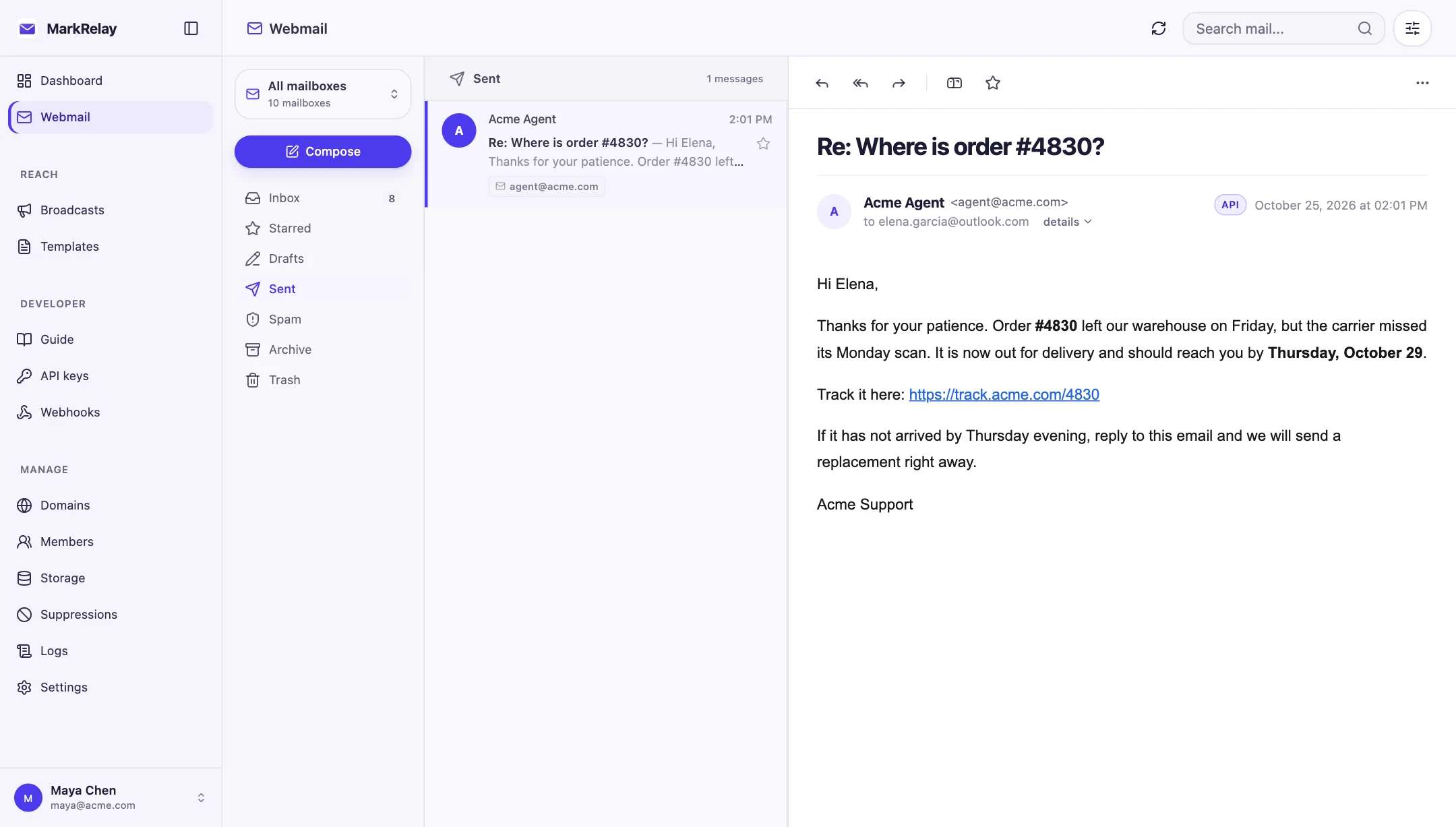
Everything the agent sends appears in MarkRelay's webmail with an API badge, so a person can review a thread, take over or reply by hand.
- One dedicated key and mailbox per agent
- Keep the key out of repositories
- Ask for a draft before anything sensitive
- Rotate keys and review access regularly
Common questions
How can I give my AI agent access to email without giving it my whole Gmail inbox?
Give the agent a mailbox of its own instead. Create agent@yourdomain.com in MarkRelay, create an API key scoped to that mailbox only, and install the MarkRelay skill in your agent. The key cannot reach any other mailbox.
Can the agent read my other mailboxes?
No. A key reaches only what its owner can open, narrowed to the scope chosen for it. A key scoped to agent@ sees no other mailbox, in any call.
How do I revoke the agent's access?
Delete or disable its API key in Developer → API keys. Removing the key owner's access to the mailbox also removes it from the key.
Will the agent send email without asking me?
The skill tells the agent to resolve unclear recipients or intent before sending and never to retry a send blindly. If you want to approve every message, tell the agent to draft and wait for your approval before it sends.
Where is the agent's mail stored?
In the D1 database and R2 bucket in your own Cloudflare account. MarkRelay never receives your email, attachments or contacts.
Go deeper
Explore more of MarkRelay
Use cases
Own your email stack today
Buy MarkRelay once and run it in your Cloudflare account. MarkRelay adds no per-message or per-seat charge; Cloudflare usage and service limits remain separate.