Members & Access
Give each person and integration the mailboxes it needs. MarkRelay keeps administration centralized while letting teams work from shared business addresses without sharing passwords.
Roles
| Role | Best for | Access |
|---|---|---|
| Administrator | Workspace owners and operators | All mailboxes and administration areas |
| Member | Support, finance, sales, and other teams | Only assigned mailboxes |
Who can do what
| Action | Administrator | Member |
|---|---|---|
| Read and send mail, run broadcasts | Every mailbox | Mailboxes granted to them |
| Rename a mailbox, or turn it off and on | Every mailbox | Mailboxes granted to them |
| See who can use a mailbox | Every mailbox | Mailboxes granted to them |
| Create API keys and webhooks | Yes | Within their own access |
| Invite members, grant and remove mailbox access | Yes | No |
| Turn a mailbox's sign-in on or off | Yes | No |
| Create domains and mailboxes; manage storage, suppressions, logs and settings | Yes | No |
Invite a member
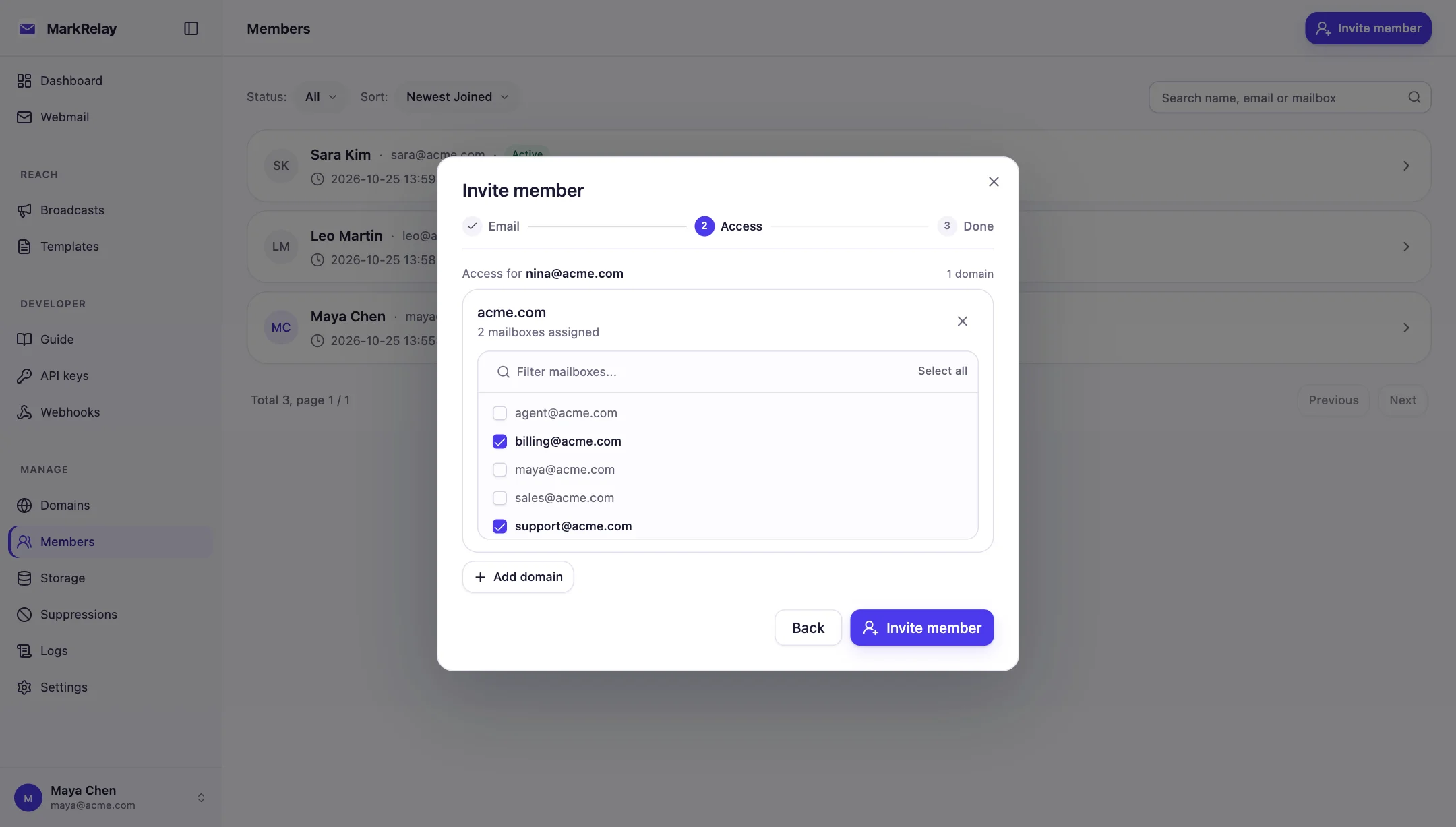
- As an administrator, open Manage → Members and choose Invite member.
- Enter the person's email address.
- Select the mailboxes they should use.
- Copy and share the invitation link securely.
- The invitee opens the link, sets a password, and enters the workspace.
Invitation links remain valid for seven days. Reissue a link if the original expires.
Change mailbox access
An administrator opens a member to add or remove mailbox assignments, or opens a mailbox to see and change everyone who can use it. Members see who shares the mailboxes granted to them, without changing it. You can also review access from a domain or mailbox page, which makes it easy to answer questions such as “who can use billing@?” or “which addresses can this teammate see?”
Mailbox sign-in
A shared address such as support@ can also sign in on its own. An administrator opens the mailbox from Manage → Domains, turns on Sign-in and sets a password. The address becomes a member account that can use that one mailbox, for a shared desk or a device that should only see that inbox.
Only administrators turn sign-in on or off. The password can be changed by an administrator, or by the mailbox itself after it signs in. Turning sign-in off signs the address out and disables its member account, which also stops any API keys and webhooks it created.
Scope integrations
When creating a personal API key or webhook, choose:
- Follows your access for an integration that should follow the member's assignments;
- One domain for a brand- or product-specific integration;
- Specific mailboxes for the narrowest access.
Integration access always stays within the owner's current mailbox permissions. This lets you safely create dedicated keys for apps and AI agents without granting workspace-wide access.
Disable or remove access
Disable a member when access should stop temporarily. Remove mailbox assignments or delete credentials that are no longer needed. For a departing teammate, review their API keys and webhooks as part of the same offboarding step.
Recommended setup
- Keep administrator access for a small number of trusted operators.
- Create one member account per person.
- Create one named key or webhook per integration.
- Use selected-mailbox access for agents and single-purpose automations.
- Review member and integration access regularly.
Related: Email API, Inbound webhooks, and AI agents setup.