Cloudflare guide · Updated October 2026
How to Reply from a Cloudflare Email Routing Address
Cloudflare Email Routing receives mail for your domain, but it cannot send. To reply from the same address you need a sending path: Gmail's "Send mail as" with an SMTP server, a Worker you write on Cloudflare Email Sending, or a webmail that runs in your Cloudflare account, such as MarkRelay. Gmail's route has an end date: Gmail stops Send as for third-party addresses in January 2027.
Gmail Send mail as ends in January 2027
Google's help pages say Gmail will stop supporting "Send as" for addresses it does not host from January 2027, with notices and restrictions on new setups from the second half of 2026. Forwarding Email Routing to Gmail and replying with Send mail as stops working then: you keep receiving, but you can no longer answer as your domain.
The route that keeps working is a mailbox that lives on Cloudflare itself. MarkRelay receives through Email Routing and replies through Email Sending from the same address, in your own Cloudflare account, for every domain and teammate you add.
How mail flows through your Cloudflare account
Cloudflare receives and sends. MarkRelay is the mailbox in between, running as your own Worker.
Receive
- Senderwrites to support@yourdomain.com
- Email RoutingCloudflare, free on any plan
- MarkRelay Workerfiles it in the mailbox
- Your D1 + R2messages and attachments
Reply
- Webmail or APIa teammate, an app or an agent
- MarkRelay Workerchecks mailbox access
- Email SendingCloudflare, in Workers Paid
- Recipientsees support@yourdomain.com
Why can't I reply from Email Routing?
Email Routing is an inbound service. Each rule either forwards a message to a verified address, such as your Gmail, or passes it to a Worker. When you hit Reply in Gmail, the reply goes out from Gmail, so the recipient sees your @gmail.com address instead of support@yourdomain.com.
Sending from your domain is a separate Cloudflare product, Email Sending, which Cloudflare includes in the Workers Paid plan.
Your three options
| What you get | Gmail Send mail asUntil January 2027 | Your own Worker | MarkRelay |
|---|---|---|---|
| Reply from your address | Until January 2027 | Yes | Yes |
| Still works after January 2027 | No | Yes | Yes |
| Needs | An SMTP server | Code you write and host | A Deploy to Cloudflare click |
| Inbox to read mail | Your Gmail | Build it | Team webmail |
| Several people, separate mailboxes | No | Build it | Yes |
| Mail stored in your Cloudflare account | No | Yes | Yes |
| HTTP API and webhooks | No | Build it | Yes |
Reply from your address
- Gmail Send mail as
- Until January 2027
- Your own Worker
- Yes
- MarkRelay
- Yes
Still works after January 2027
- Gmail Send mail as
- No
- Your own Worker
- Yes
- MarkRelay
- Yes
Needs
- Gmail Send mail as
- An SMTP server
- Your own Worker
- Code you write and host
- MarkRelay
- A Deploy to Cloudflare click
Inbox to read mail
- Gmail Send mail as
- Your Gmail
- Your own Worker
- Build it
- MarkRelay
- Team webmail
Several people, separate mailboxes
- Gmail Send mail as
- No
- Your own Worker
- Build it
- MarkRelay
- Yes
Mail stored in your Cloudflare account
- Gmail Send mail as
- No
- Your own Worker
- Yes
- MarkRelay
- Yes
HTTP API and webhooks
- Gmail Send mail as
- No
- Your own Worker
- Build it
- MarkRelay
- Yes
1. Gmail "Send mail as" (until January 2027)
Gmail can send as another address, but it asks for an SMTP server for it. Cloudflare provides none, so people use Gmail's own SMTP with an app password or a third-party SMTP service. Add that service to your domain's SPF and DKIM records, or replies may land in spam. It works for one person and gets messy for a team, and it has an end date: Google says Gmail stops supporting Send as for third-party addresses in January 2027.
2. Your own Worker on Email Sending
Route the address to a Worker, store the message yourself, and send replies with the Worker's send_email binding. You control everything, and you build and maintain the inbox, storage, threading and access control.
3. A webmail in your Cloudflare account
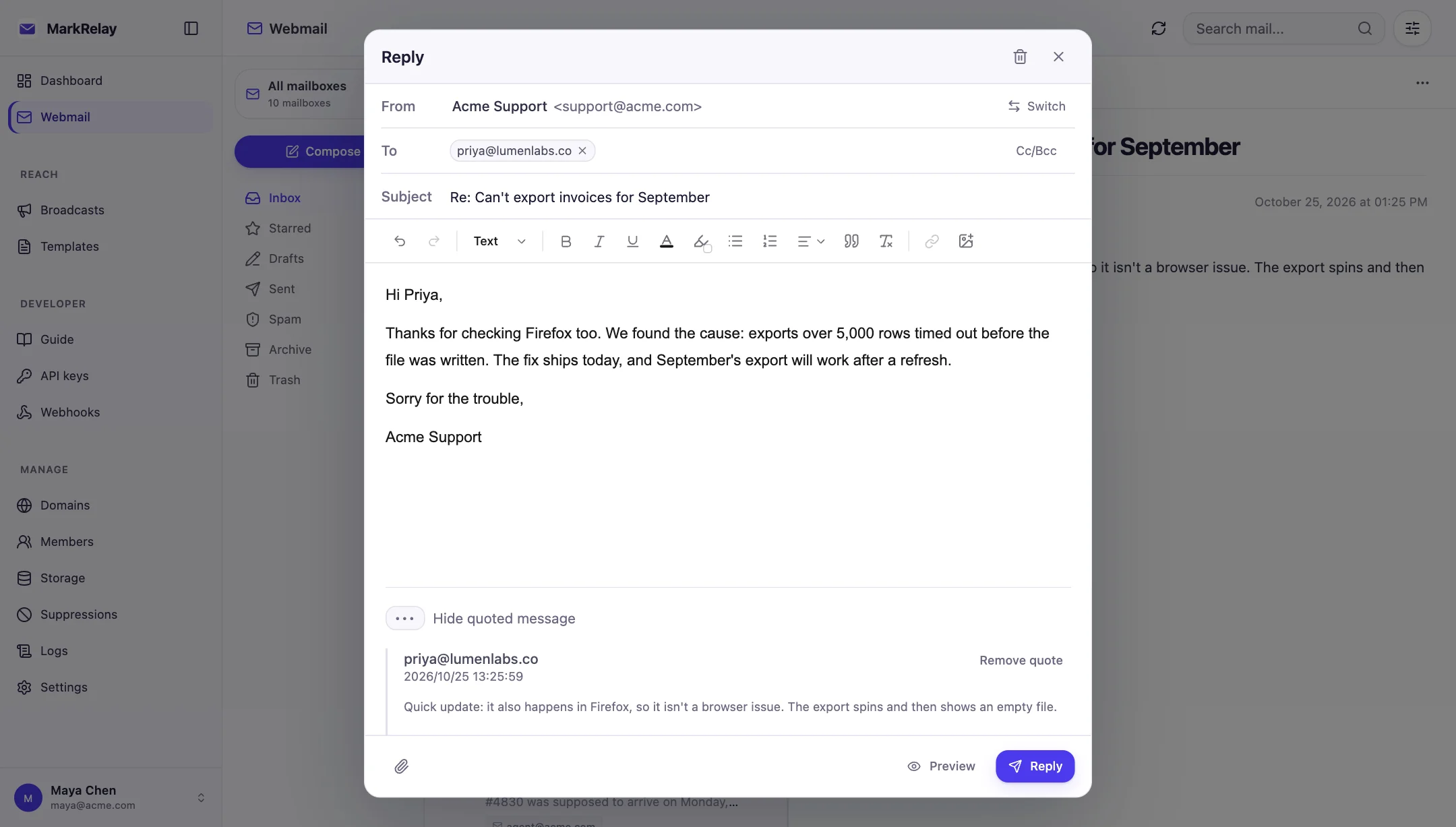
MarkRelay is that Worker, already built: a team webmail plus an HTTP API that runs in your own Cloudflare account. Email Routing hands mail to it, it stores messages in your D1 database and R2 bucket, and replies go out through Email Sending from the address the mail was sent to. Nothing depends on Gmail, so it keeps working after Gmail drops Send as in 2027, and one catch-all rule covers every mailbox you add later. Other apps do this too; see email apps that run on Cloudflare.
Set it up with MarkRelay
- Install MarkRelay with the Deploy to Cloudflare button and activate your license.
- Make sure the account is on Workers Paid, then onboard the domain to Email Sending. Cloudflare adds the DNS records.
- Add the domain and a mailbox, such as
support@yourdomain.com, in MarkRelay. - In Email Routing, change the address's rule (or the catch-all) from Send to an email to Send to a Worker, and pick the MarkRelay Worker.
- Send yourself a test message, open it in MarkRelay and reply.
The full walkthrough is in Set up your first domain.
Common questions
Can Cloudflare Email Routing send email?
No. Email Routing only receives: it forwards each message to a verified address or hands it to a Worker. Sending from your domain goes through Cloudflare Email Sending, or through an outside SMTP service.
Can I keep replying with Gmail "Send mail as"?
Until January 2027. Google's help pages say Gmail will no longer support Send as for third-party addresses from then on, and an address forwarded from Cloudflare Email Routing is one. Replying from MarkRelay through Cloudflare Email Sending does not depend on Gmail.
Is Email Routing free?
Yes. Receiving through Email Routing is unlimited on both the Workers Free and Workers Paid plans.
Do I need Workers Paid to reply?
To send through Cloudflare Email Sending to any recipient, yes. Workers Paid starts at $5/month and includes 3,000 sent emails a month.
Will my replies stay in the same thread?
Yes. MarkRelay replies with the original message's references, so the conversation stays threaded in your recipient's inbox and in MarkRelay.
Next: Send email with Cloudflare Email Sending and what it costs to run.