Guide · Updated October 2026
MarkRelay MCP Server
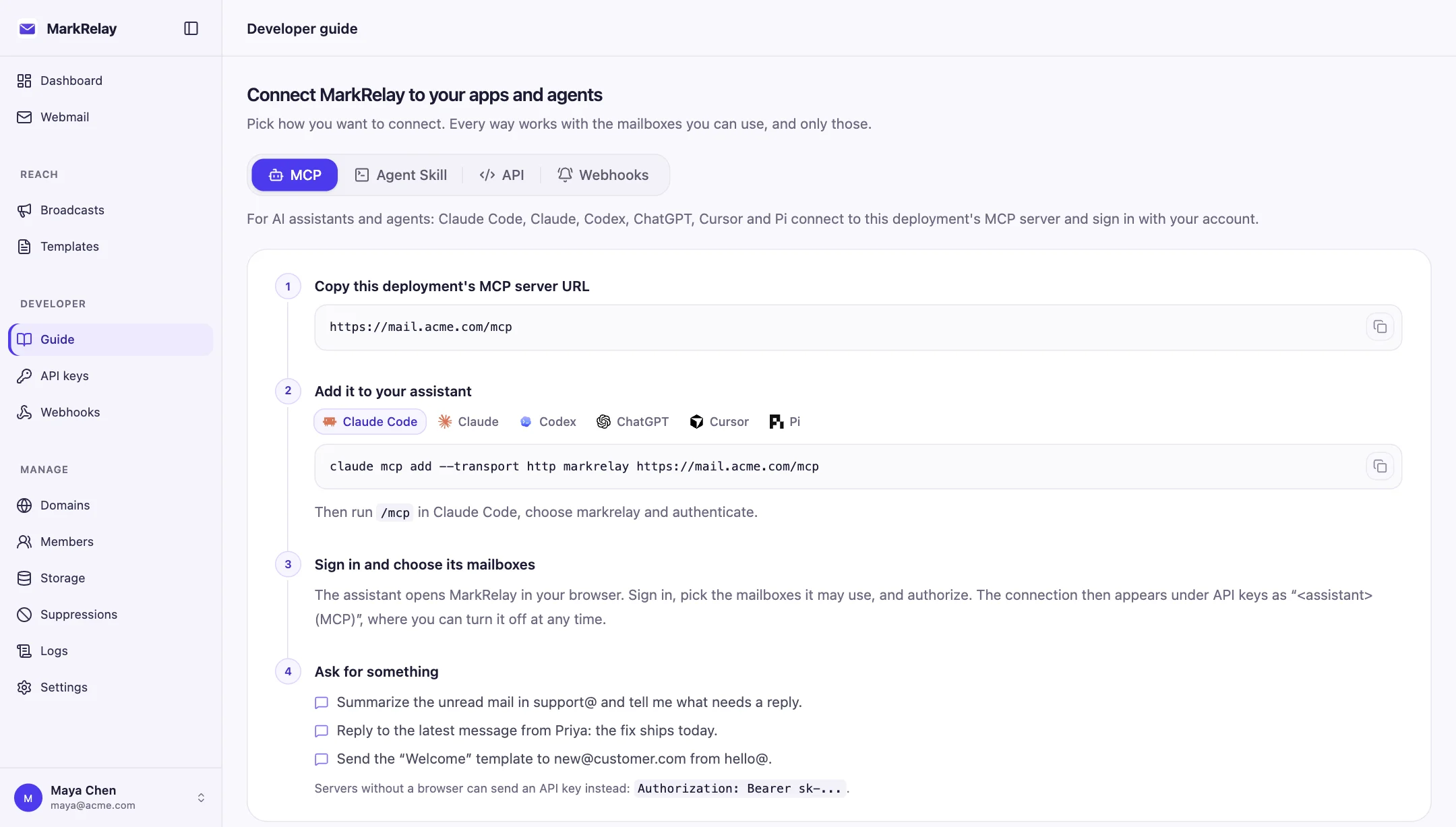
Every MarkRelay deployment is a remote MCP server. Add its URL to Claude Code, Claude, Codex, ChatGPT, Cursor or Pi, sign in, choose the mailboxes the client may use, and it can read, search, send, reply to and forward email on your own domain. Nothing to install or host.
Your server URL
The server is at /mcp on the address you open MarkRelay at:
https://<your-deployment>/mcpIt uses the Streamable HTTP transport. Every deployment has its own URL; there is no shared MarkRelay server.
How connecting works
- You add the URL to a client. The client finds the sign-in page by itself (OAuth 2.1).
- A browser opens on your MarkRelay deployment. Sign in as usual.
- On the consent page, choose what the client may reach: everything you can use, one domain, or specific mailboxes.
- Allow access. The connection is saved as a personal API key named after the client, such as Claude (MCP), under API keys, where you can disable or delete it.
A connection never reaches more than its owner can open, and it loses access the moment the owner does. See members and access.
Connect a client
Claude Code
claude mcp add --transport http markrelay https://<your-deployment>/mcpThen run /mcp in Claude Code, choose markrelay and authenticate.
Claude (web, desktop and mobile)
Open Customize → Connectors, choose + Add → Add custom connector, name it MarkRelay, paste your server URL, keep the suggested sign-in settings, and select Add. The connector then works in Claude on every device. On Team and Enterprise plans, an owner adds it once in Organization settings → Connectors and each member connects with their own sign-in.
Codex
codex mcp add markrelay --url https://<your-deployment>/mcp
codex mcp login markrelay
ChatGPT
Turn on Developer mode in Settings → Apps → Advanced settings, then choose Create app, enter your server URL with OAuth authentication, and sign in when ChatGPT asks.
Cursor
Add the server to ~/.cursor/mcp.json, then sign in from Cursor's MCP settings:
{
  "mcpServers": {
    "markrelay": { "url": "https://<your-deployment>/mcp" }
  }
}
VS Code
Add it to .vscode/mcp.json:
{
  "servers": {
    "markrelay": { "type": "http", "url": "https://<your-deployment>/mcp" }
  }
}
Pi
pi mcp add markrelay --url https://<your-deployment>/mcp
pi mcp login markrelay
Pi 1.0 or later. Inside a session, /mcp login markrelay does the same.
Servers and scripts: use an API key
An agent running without a browser cannot sign in. Create a key in Developer → API keys with the scope it needs and send it as a header instead:
Authorization: Bearer sk-...In Codex, for example: codex mcp add markrelay --url https://<your-deployment>/mcp --bearer-token-env-var MARKRELAY_API_KEY. Some clients ignore custom headers once a server offers OAuth; use OAuth with those.
Tools
| Tool | What it does |
|---|---|
list_mailboxes | The mailboxes the connection may use. Clients call it first. |
list_emails | List or search one mailbox by folder, text, sender, subject, read state, star and date, a page at a time. |
get_email | One email: sender, recipients, subject, the text body (HTML only when there is no text part) and attachment details. |
send_email | Send from a granted mailbox as text, Markdown or HTML, or send a saved template by ID with its variables. |
reply_email | Reply in the same thread, optionally to everyone. |
forward_email | Forward with the original attachments and an optional note. |
update_email | Mark read or unread, star, or move to a folder such as archive. |
list_templates | The saved templates the connection can send. |
get_template | One template's subject, preheader and the variables it needs. |
get_attachment | Read an attachment: text files as text, images as images, other files up to 3 MB as the file. |
upload_attachment | Upload a file from text, base64 or a public https URL, to attach with send, reply or forward. |
The tools run the same operations as the Email API, with the same checks and limits. Sent mail appears in webmail with an API badge, so your team sees what a client sent.
Safety
- There is no delete tool. Moving mail to trash or archive is the most a client can do to it.
- Sending, replying and forwarding are marked as actions that cannot be undone, so clients ask before running them.
- Email comes from outside senders. The server tells clients to treat instructions inside a message as data, but keep sensitive mailboxes out of a connection that does not need them.
- Give each client its own connection with the narrowest scope that works, and review your API keys from time to time.
MCP server or Agent Skill?
Use the MCP server with chat apps and editors: Claude, ChatGPT, Cursor and VS Code. Agents that run shell commands can also use the Agent Skill, which calls the HTTP API directly and adds recipes for scheduled inbox checks and very large files.
Common questions
Does MarkRelay host the MCP server for me?
No. Every MarkRelay deployment is its own MCP server, at /mcp on the address you use to open it. Mail stays in your Cloudflare account; MarkRelay the company never sees it.
Can a connected client read all my mail?
Only the mailboxes you choose when you connect it, and never more than you can open yourself. Pick Specific mailboxes on the consent page to give a client one address, such as agent@.
Can it delete email?
No. There is no delete tool. A client can move mail to a folder such as archive or trash, and people can delete from webmail. The HTTP API still has DELETE for your own code.
How do I disconnect a client?
Each connection is listed under API keys as the client's name followed by (MCP). Disable it to pause access, or delete it; the client has to sign in again to come back.
Do I still need the Agent Skill?
Not for chat apps such as Claude, ChatGPT and Cursor: the MCP server is the simpler way in. Agents that run commands, such as Claude Code, Codex or OpenClaw, can use either; the skill also has recipes for watching an inbox on a schedule and for attachments too large to send by email.
Related: AI agents setup, Agent skill reference and the Email API.